Set Up the Plugin and How Sending Works
This page walks through installing the Logystera plugin, connecting it to your account, and what happens to your events afterwards. Everything on it applies to plugin version 1.0.0 and later.
Install and connect
- Download the Logystera plugin ZIP from the release page. In WordPress go to Plugins → Add New Plugin → Upload Plugin, choose the ZIP, click Install Now, then Activate.
- Open Logystera in the WordPress sidebar. The plugin is already recording events on your server, and the Status page shows Not connected.
- Click Connect. You are taken to Logystera.
- Sign in. If you do not have an account yet, a free one is created as you sign in.
- Click Connect Site.
- You are returned to WordPress, where the plugin shows Connected! and starts sending the events it has recorded so far.
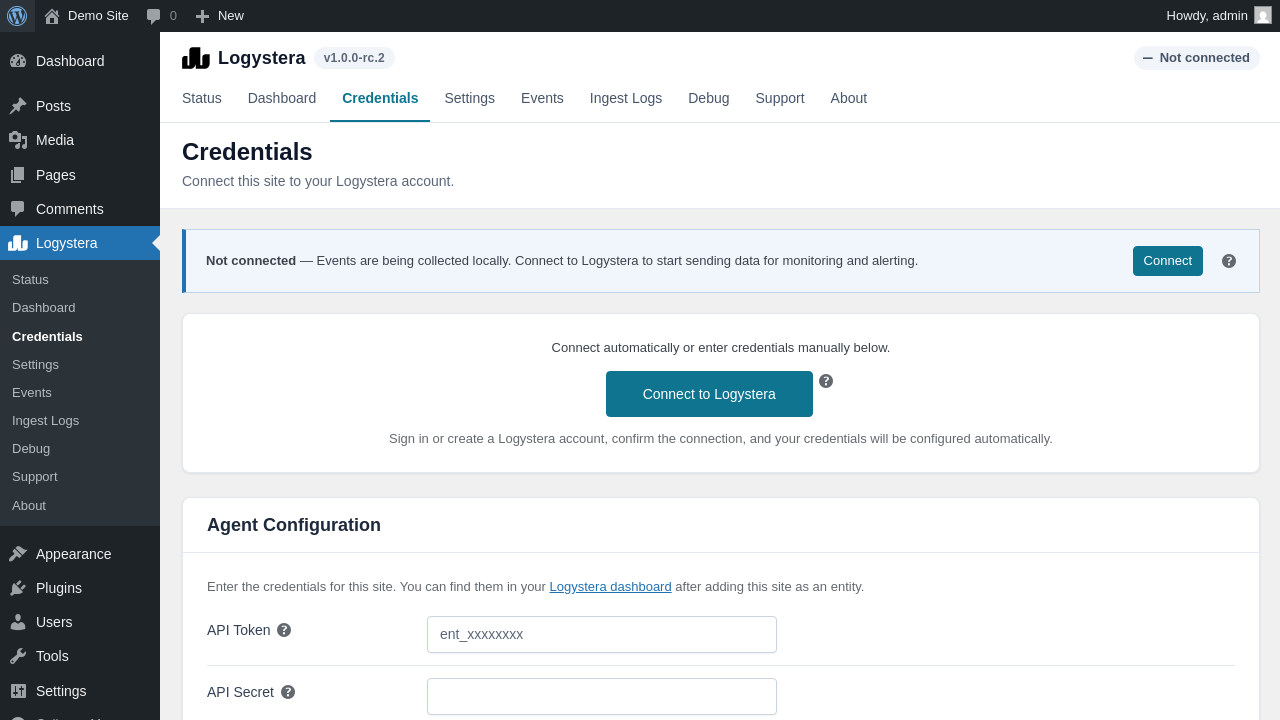
The Connect to Logystera button is on the Credentials page, and a Connect button also sits in the banner at the top of every Logystera page. Nothing is sent to Logystera until you connect. If you prefer, you can paste an API token and secret into the Credentials page instead of using the button.
Walkthrough: connecting a site. The sign-in step at Logystera is not shown; the recording starts at the Connect button and ends on the confirmation in WordPress.
After connecting, your site appears in your Logystera account. Outside checks start within minutes. Plugin and vulnerability information follows after the site's next scheduled report-in, usually within 15 minutes on a site with regular visits.
How sending works
The plugin separates recording from sending.
- Recording. As WordPress runs, the plugin writes events to a file on your server. A page visit only records; it does not make your visitor wait for Logystera.
- Sending. Recorded events are sent in batches over HTTPS. The normal trigger is WP-Cron, WordPress's built-in scheduler, which by default runs the plugin's send every 5 minutes. You can choose every minute, 2, 5 or 15 minutes under Logystera → Settings → Flush Interval.
- Send now. The Send Now (Flush Queue) button on the Status page sends everything waiting straight away, without waiting for the next scheduled run. It is available once the site is connected.
- If Logystera cannot be reached, events wait on your server (up to 50 MB, and for 7 days by default) and the plugin retries with growing delays. Sending resumes on its own.
WP-Cron and visits
WordPress's built-in cron only runs when someone loads a page. On a quiet site the scheduled send can therefore happen later than the interval you chose. If your site gets few visits, or you want a guaranteed schedule, use a system cron (see below).
If WP-Cron falls behind on a busy site, the plugin can also send at the end of a request, at most once every two minutes. This is a safety net, not the normal path. While Logystera is unreachable or asks the plugin to slow down, nothing is sent on visitors' requests.
What changed for slow gateways
On servers that can finish a response before running slower work (PHP-FPM and LiteSpeed), the visitor already has the page when the plugin sends.
On servers that cannot (typically Apache with mod_php), a send at the end of a request would otherwise make that visitor wait. Since 1.0.0 the wait for Logystera is capped at about one second on those servers, and that send carries at most one batch of your normal batch size. If Logystera cannot answer in that time, the batch is kept on your server and the scheduled send delivers it.
Use a system cron (optional)
A system cron runs on a fixed schedule whether or not anyone visits your site. It is the better choice for shared hosting with low traffic.
-
Turn off WordPress's visitor-triggered cron. In
wp-config.php, above the line that says That's all, stop editing, add:php define( 'DISABLE_WP_CRON', true ); -
In your hosting control panel (cPanel Cron Jobs, Plesk Scheduled Tasks, or your own crontab), add a job that runs every minute and calls
wp-cron.php:bash * * * * * curl -s https://your-site.example/wp-cron.php?doing_wp_cron > /dev/null 2>&1Replace the address with your own site. A command-line alternative is
wp cron event run --due-nowif WP-CLI is installed. -
Open Logystera → Settings. Under Flush Interval the plugin now shows System cron detected. With a system cron, the interval is the minimum gap between sends: it cannot make sends more frequent than your host runs
wp-cron.php.
Do not set DISABLE_WP_CRON without adding the host cron job, or no scheduled work, including Logystera's, will run.
Check that sending works
Open Logystera → Status and look at the Connection Status card:
| Row | What it tells you |
|---|---|
| Current State | Connected when all is well. |
| Last Data Sent | When Logystera last accepted a batch. Never means nothing has been delivered yet. |
| Last Heartbeat | When the site last checked in; about every 15 minutes. |
| Backoff / Next Retry | Shown if a send failed and the plugin is waiting before trying again. |
| Queue Size (events) | Events recorded and waiting to be sent. |
| Live Buffer | The buffer files new events are written to, with their number. |
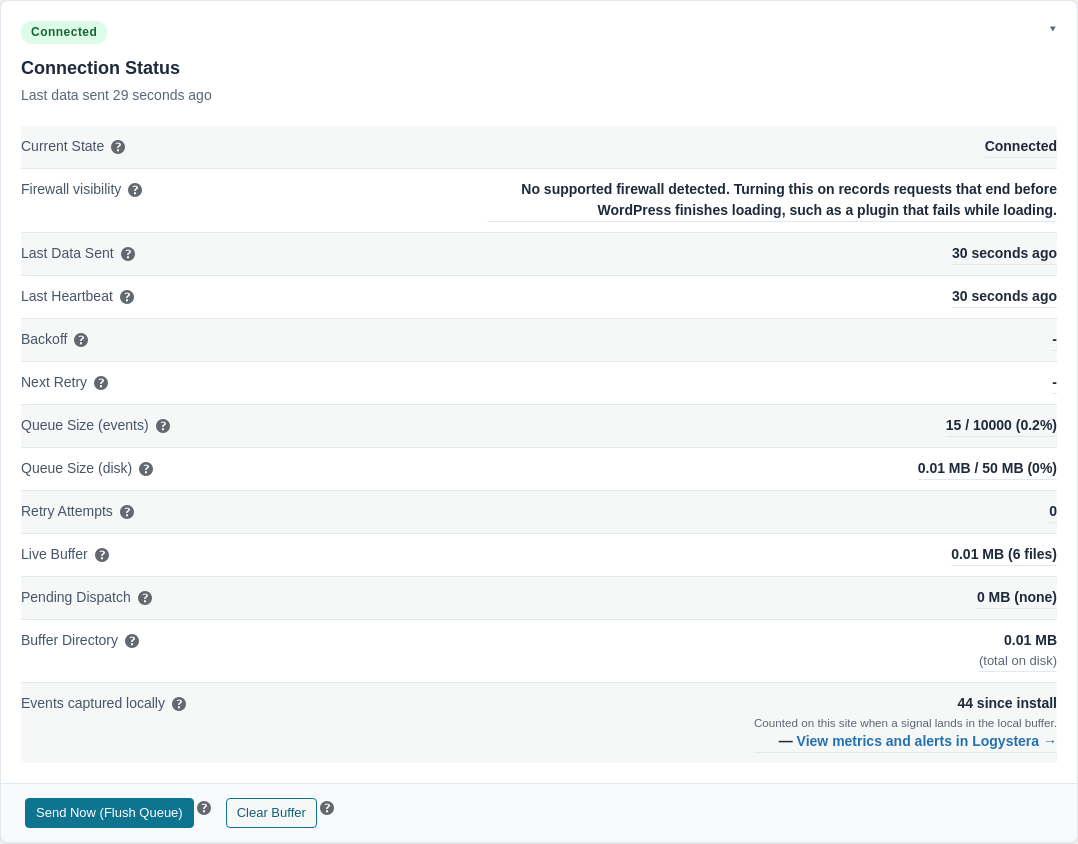
On a healthy site, Last Data Sent stays within a few minutes of the interval you chose, and the queue stays small and drops after each send. The Settings page tells you whether the site is using WordPress's built-in cron or a system cron.
Walkthrough: reading the Status page.
Send now
To check delivery on demand, open the Status page and click Send Now (Flush Queue). A green notice at the top of the page confirms the result, for example "Flush successful. Sent 40 events." Reload the page afterwards: Last Data Sent shows a few seconds ago and the queue has dropped.
Walkthrough: using Send Now.
If events still do not arrive, see Events are not arriving.