Account & Team
Account settings are under Settings in the top navigation. They cover your profile, team, billing, API keys, webhooks, and notifications.
Profile
Settings → Profile
Edit your display name. Your email address is read-only — contact support to change it.
Change password:
- Enter your current password
- Enter a new password (minimum 8 characters)
- Confirm the new password
- Save
Team & users
Settings → Users
Invite team members to your account. Each member gets their own login and can access all entities (unless entity-level access restrictions are applied).
Roles
| Role | Permissions |
|---|---|
| Admin | Full access — manage entities, rules, billing, users, API keys |
| Viewer | Read-only — view dashboards, alerts, and entity data |
Inviting a user
- Click Invite user
- Enter their email address
- Select a role (Admin or Viewer)
- Send invitation
The invitee receives an email with a link to create their account and join the tenant. Pending invitations are listed below the active members table.
Resending and revoking invitations
Pending invitations can be resent (if the email was missed) or revoked (if the invitation was sent in error). Find the pending invitation in the list and use the action menu.
Removing a user
Click the action menu on a user row and select Remove. The user immediately loses access. You cannot remove yourself.
Subscription & billing
Settings → Subscription
Active subscriptions
Lists all active subscriptions — base plans and add-ons. For each subscription:
- Plan name and type (base or add-on)
- State — Active, Trial, Cancelled, Suspended, Past Due
- Billing cycle — start and end dates
- Entity usage — entities assigned vs. entity limit
Assigning entities to subscriptions
Each subscription has an entity limit. Entities must be assigned to a subscription to receive full monitoring coverage.
- In the Entity Assignment section, select the subscription tab
- Drag entities from Available to Assigned (or use the assign button)
- Each subscription shows how many slots remain
Adding a plan
- Scroll to Choose a Plan
- Select a plan from the dropdown
- Click Subscribe (or Start Free Trial if eligible)
A free 14-day trial is available for new accounts on eligible plans.
Cancelling a subscription
Click Cancel on the subscription. The subscription remains active until the end of the current billing period. A cancellation countdown is shown.
To undo a cancellation before the period ends, click Reactivate.
Billing portal
Click Manage billing in Stripe to open the Stripe billing portal, where you can update your payment method, download invoices, and manage payment details.
Invoices
Settings → Invoices
View all invoices. Click Download to download a PDF. Invoices show the billing period, line items, and payment status.
API keys
Settings → API Keys
API keys authenticate programmatic access to the Logystera API. Each key has a name, creation date, and last-used date.
Creating a key
- Click Generate API key
- Give it a descriptive name
- Copy the key — it is only shown once
Store API keys securely. Do not commit them to version control.
Rotating a key
Generate a new key, update your integration, then revoke the old key.
Revoking a key
Click Revoke on a key. It stops working immediately.
Webhooks
Settings → Global Webhooks
Global webhooks receive all alerts from all entities. Entity-level webhooks (configured in the entity's Webhooks tab) receive alerts only from that entity.
Adding a webhook endpoint
- Click New global webhook
- Enter a name and the endpoint URL
- Select a delivery format — see below
- Save
Delivery formats
| Format | Use case |
|---|---|
| JSON | Generic — send to any HTTP endpoint, custom integrations |
| Slack | Paste your Slack Incoming Webhook URL — alerts arrive as formatted Slack messages |
| Microsoft Teams | Paste your Teams Incoming Webhook URL — alerts arrive as Teams cards |
For Slack: create an Incoming Webhook in your Slack workspace (Apps → Incoming Webhooks), copy the URL, and use the Slack format.
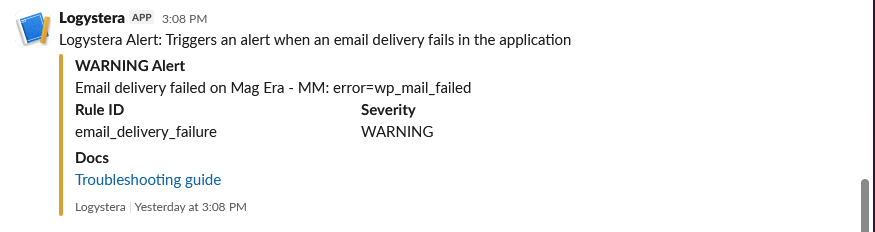
Webhook payload format (JSON)
{
  "alert_id": "01JMQT8X...",
  "rule_name": "wp_brute_force_login",
  "severity": "high",
  "entity_id": "...",
  "entity_name": "My WordPress Site",
  "fired_at": "2026-03-02T10:23:44Z",
  "message": "Brute force login detected: 47 failed attempts in 5 minutes from 203.0.113.0",
  "metadata": {
    "ip": "203.0.113.0",
    "attempts": 47,
    "window": "5m"
  }
}
Delivery history
Settings → Webhooks → Deliveries
Shows every webhook delivery attempt, with status (success or failed), HTTP response code, and payload. Failed deliveries can be retried manually.
Notifications
Settings → Notifications
Configure how and when you receive alerts.
- Email — enable or disable email notifications. Choose which severity levels trigger emails.
- Webhooks — notifications are sent to all configured webhook endpoints automatically.
Entity-level notification settings (configured in the entity's Notifications tab) override these account defaults for that specific entity.
Tenant settings
Settings → Tenant
Edit your tenant name. The tenant slug (used in API paths) is assigned at signup and cannot be changed.